Wednesday, 11 April 2018

What Is Unix, and Why Does It Matter?


Most operating systems can be grouped into two different families. Aside from Microsoft’s Windows NT-based operating systems, nearly everything else traces its heritage back to Unix.
Linux, Mac OS X, Android, iOS, Chrome OS, Orbis OS used on the PlayStation 4, whatever firmware is running on your router — all of these operating systems are often called “Unix-like” operating systems.

Unix’s Design Lives On Today

Unix was developed in AT&T’s Bell Labs back in the mid-to-late 1960’s. The initial release of Unix had some important design attributes that live on today.
One is the “Unix philosophy” of creating small, modular utilities that do one thing and do them well. If you’re familiar with using a Linux terminal, this should be familiar to you — the system offers a number of utilities that can be combined in different ways through pipes and other features to perform more complex tasks. Even graphical programs are likely calling simpler utilities in the background to do the heavy lifting. This also makes it easy to create shell scripts, stringing together simple tools to do complicated things.
Unix also had a single file system that programs use to communicate with each other. This is why “everything is a file” on Linux – including hardware devices and special files that provide system information or other data. It’s also why only Windows has drive letters, which it inherited from DOS — on other operating systems, every file on the system is part of a single directory hierarchy.
UNIX BELL LABS

Tracing the Unix Descendants

Like any history going back over 40 years, the history of Unix and its descendants is messy. To simplify things, we can roughly group Unix’s descendants into two groups.
One group of Unix descendants were developed in academia. The first was BSD (Berkeley Software Distribution), an open-source, Unix-like operating system. BSD lives on today through FreeBSD, NetBSD, and OpenBSD. NeXTStep was also based on the original BSD, Apple’s Mac OS X was based on NeXTStep, and iOS was based on Mac OS X. Many other operating systems, including the Orbis OS used on the PlayStation 4, are derived from types of BSD operating systems.
Richard Stallman’s GNU project was also started as a reaction to AT&T’s increasingly restrictive Unix software licensing terms. MINIX was a Unix-like operating system created for educational purposes, and Linux was inspired by MINIX. The Linux we know today is really GNU/Linux, as it’s made up of the Linux kernel and a lot of GNU utilities. GNU/Linux isn’t directly descended from BSD, but it is descended from Unix’s design and has its roots in academia. Many operating systems today, including Android, Chrome OS, Steam OS, and a huge amount of embedded operating systems for devices, are based on Linux.
On the other hand, there were the commercial Unix operating systems. AT&T UNIX, SCO UnixWare, Sun Microsystems Solaris, HP-UX, IBM AIX, SGI IRIX — many big corporations wanted to create and license their own versions of Unix. These aren’t quite as common today, but some of them are still out there.
Image Credit: Wikimedia Commons

The Rise of DOS and Windows NT

Many people expected Unix to become the industry standard operating system, but DOS and “IBM PC compatible” computers eventually exploded in popularity. Microsoft’s DOS became the most successful DOS of them all. DOS was never based on Unix at all, which is why Windows uses a backslash for file paths while everything else uses a forward slash. This decision was made back in the early days of DOS, and later versions of Windows inherited it, just as BSD, Linux, Mac OS X, and other Unix-like operating systems inherited many aspects of Unix’s design.
Windows 3.1, Windows 95, Windows 98, and Windows ME were all based on DOS underneath. Microsoft was developing a more modern and stable operating system at the time, which they named Windows NT — for “Windows New Technology.” Windows NT eventually made its way to regular computer users as Windows XP, but it was available for corporations as Windows 2000 and Windows NT before that.
All of Microsoft’s operating systems are based on the Windows NT kernel today. Windows 7, Windows 8, Windows RT, Windows Phone 8, Windows Server, and the Xbox One’s operating system all use the Windows NT kernel. Unlike most other operating systems, Windows NT wasn’t developed as a Unix-like operating system.
Microsoft didn’t start with a completely clean slate, of course. To maintain compatibility with DOS and old Windows software, Windows NT inherited many DOS conventions like drive letters, backslashes for file paths, and forward slashes for command-line switches.
windows-2000-professional-built-on-nt-technology

Why it Matters

Have you ever taken a look at the Mac OS X terminal or file system and noticed how similar it was to Linux’s, and how different they both were from Windows? Well, this is why —  both Mac OSX and Linux are Unix-like operating systems.
Knowing this bit of history helps you understand what a “Unix-like” operating system is, and why so many operating systems seem so similar to each other while Windows seems so different. This explains why the terminal on Mac OS X will feel so familiar to a Linux geek, while the Command Prompt and PowerShell on Windows are so different from other command-line environments.

This was just a quick history that will help you understand how we got to where we are today without getting bogged down in the details. If you want more information, you can find entire books on the history of Unix.
Read More

What’s the Difference Between Jailbreaking, Rooting, and Unlocking?

iphones ipods and ipad
Compared to a PC, phones and tablets are fairly locked-down devices. Jailbreaking, rooting, and unlocking are all ways of bypassing their limitations, and doing things that manufacturers and carriers don’t want you to do.
Some countries have laws that prevent you from doing these things with the devices you paid for and legally own — we won’t get into those laws here.

Jailbreaking

Jailbreaking is the process of removing the limitations put in place by a device’s manufacturer. Jailbreaking is generally performed on Apple iOS devices, such as the iPhone or iPad. Jailbreaking removes the restrictions Apple puts in place, allowing you to install third-party software from outside the app store. Some people may have the perception that jailbreaking is only used for piracy, but this isn not the case — jailbreaking allows you to do things like change your iPhone’s default browser and mail client. Essentially, jailbreaking allows you to use software that Apple doesn’t approve.
Jailbreaking can be performed on other devices with similar limitations. For example, there is now a Microsoft Surface RT jailbreak that allows you to install unapproved desktop programs. (By default, Windows RT systems only allow you to run desktop applications written by Microsoft.) However, the desktop apps must be compiled for ARM, so you can’t run any Windows desktop programs you already have, although open-source applications could be tweaked and recompiled for the Windows desktop on ARM.
Companies like Apple and Microsoft don’t want you jailbreaking to get past a device’s limitations — so you can change the default programs on iOS or run third-party desktop applications on Windows RT. To perform a jailbreak, someone has to find a security vulnerability that allows them to “exploit” the device and get around the manufacturer safeguards.
Android allows users to install third-party applications from outside Google’s app store out-of-the-box and doesn’t need to be jailbroken.

Rooting

Rooting is the process of gaining “root access” to a device. This is generally performed on Android devices, but rooting can also occur on other devices based on Linux, such as Nokia’s now-retired Symbian operating system.
On Linux and other UNIX-like operating systems, the root user is essentially the same as the Administrator user on Windows. After rooting, you can grant specific applications access to root permissions, allowing them to do almost anything they want to the operating system. For example, an application with root permissions could uninstall system applications, install low-level system binaries, revoke permissions installed apps require, and do other crazy things. Almost anything you can do on a proper Linux system, you can do with root access on your phone.
Rooting gets around Android’s security architecture and could potentially cause problems if users don’t know what they’re doing, so Android doesn’t come rooted.
On some devices, rooting may need to be accomplished via a security exploit. Just like jailbreaking, manufacturers generally don’t want you rooting. On some devices, such as Nexus devices (which are also intended for developers), rooting does not require a security vulnerability.
image

Unlocking a Bootloader

Android is an open-source operating system, so anyone can take the Android source code and create their own version of it. This allows custom ROMs like Cyanogenmod to exist. Lots of custom ROMs exist for Android — everything from large projects that support a variety of devices to custom ROMs with a few theme patches some kid whipped up in his spare time.
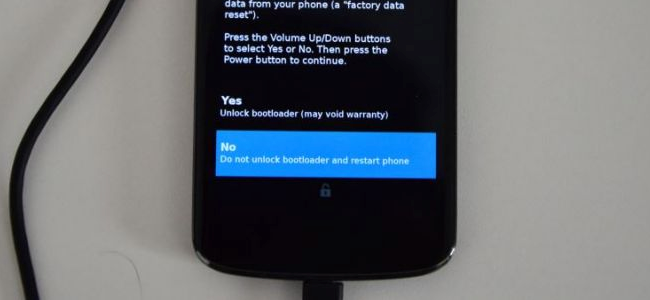
However, many Android phones come with locked bootloaders. A locked bootloader won’t boot anything but the manufacturer-approved version of Android that comes with the device. Unlocking the bootloader allows you to install custom ROMs — alternate versions of the Android operating system.
This isn’t just useful to geeks — Cyanogenmod brings new versions of Android to devices that manufacturers no longer update. It’s a more vanilla Android experience, too — many people like it because it is an alternative to the manufacturer-customized user interfaces most Android devices come with.
Unlocking a device’s bootloader may also require a security exploit, although companies like HTC and Motorola allow unlocking some devices. Nexus devices (which are also intended for developers) can be easily unlocked.
Unlocking a boot loader can theoretically allow you to install non-Android operating systems, too. For example, you can install Ubuntu for phones or WebOS on a Galaxy Nexus with an unlocked bootloader. The desktop version of Ubuntu can be installed on the Nexus 7, too. Of course, the operating system must be built to be compatible with a specific device. These operating systems probably aren’t particularly stable — but developers can use the devices to run an alternate operating system while they work on it.
cyanogenmod-header
Image Credit: Johan Larsson on Flickr

Unlocking a Phone

Many phones, particularly phones that come subsidized with a contract, come “locked” to a specific carrier. The phone is set up so that it can only be used on that carrier’s network. If you insert a SIM card from a competing carrier into the phone, you will see a message indicating that the phone is locked and cannot be used with the SIM card.
Unlocking a phone allows you to use it with a different SIM card — either to use a different carrier while travelling or to take your current phone with you while switching to a new service provider.
You will generally need an unlock code to unlock the phone. Many carriers will unlock phones once your contract is up, while phones bought outright without a contract may not be locked to a carrier at all. There are ways to unlock phones without a carrier’s permission, too.
locked t-mobile phone
Image Credit: Kai Hendry on Flickr

Not everyone has to jailbreak, root, or unlock their devices. However, the option is there — and now you know why you might want to.
Read More

The Case Against Root: Why Android Devices Don’t Come Rooted


image
We’ve written about rooting your Android smartphones and tablets before, but why don’t they come rooted? Google argues that rooting is a mistake for security reasons, as it subverts Android’s security model.
Over the years, Google has added more and more formerly root-only features to Android – from screenshots to support for encryption and VPNs. The goal is to minimize the need for rooting.

What is Rooting, Anyway?

Android is based on Linux, where the “root” user is equivalent to the Administrator user in Windows. The term “rooting” means gaining root access to your smartphone or tablet and being able to run applications with that root permissions – full system access, in other words.
A standard rooting process will also an application like Superuser or SuperSU. This application supervises access to root. Applications on your device can’t just get root permissions whenever they want – they have to prompt you and you can confirm or deny the request.
image

Breaking Out of Android’s Security Model

Android uses Linux’s security model in a different way. Every Android app runs with its own user ID, or UID. In other words, every app runs as its own user account. This means that every app has its own data isolated from every other app. If you install your bank’s app, its data will be stored so that it’s only accessible by the bank’s app – other apps on your device can’t snoop on it.
On a standard Android configuration, no app can access any other app’s data, no matter how many permissions the app asks for.
This all changes when you run an application as root. The application is no longer running in a sandboxed area – it has access to the entire system. An app with root permissions can read other apps’ data – this is how the excellent Titanium Backup works and why it requires root.

Root Permission Prompts and Malware

The full system access means that malware could potentially exploit root access to do much more damage than it normally could. Once an app is granted root access, it can do anything – run a key logger in the background without telling you, extract your account information from other apps, or even mess up your device by deleting critical system files.
If you know what you’re doing and only download trusted root apps, you can avoid this. However, this is worth remembering when you consider how many less-technical users use Android. They don’t care about running Titanium Backup and having access to the entire root file system – they just want it to work, place phone calls, and play Angry Birds.
In other words, you probably shouldn’t root your relatives’ smartphones and tablets as a favor to them.
image

With Great Power Comes Great Responsibility

The problems don’t only extend to malware. With full access to the root file system, you can delete critical system files in the root file system or disable critical system apps and prevent your device from functioning properly. Windows goes to great pains to prevent average users from mucking around in the C:\Windows folder for the same reason. If the average user doesn’t understand what they’re doing, they can do serious damage to their operating system.
image

Warranty Considerations

Some manufacturers or carriers may try to refuse you warranty service if you have a rooted device. If you’ve used root access to modify your system files and the software no longer works properly, this makes some sense – although you should be able to restore the device to its factory default settings and fix it on your own.
If the device’s hardware is failing, rooting can’t be the cause (unless you’ve installed an overclocking app that required root and killed the hardware with heat). To prevent any arguments, you should unroot the device before taking it in for service.
This is yet another reason why you wouldn’t want to root a non-technical family member’s device – it may cause them problems if they ever need it fixed or replaced.

In summary, rooting grants you great power – more power than Android is designed to give you. (However, it’s Linux underneath, and Linux works just fine with root access.) An app with root access isn’t bound by any permission restrictions and has the potential to cause some serious problems. If you know what you’re doing, you should be okay – but you’ll need to be more careful.
However, this power is only a liability for the average Android user. This is why Android doesn’t come rooted – if any app could pop up a root permission prompt and gain complete access to the system, many less-technical users would allow the access so they can continue using the app. Some apps might even refuse to run without root access just to display nastier ads, just as many ad-supported apps ask for a long list of permissions today. The lack of root helps protect average users.
Read More

SafetyNet Explained: Why Android Pay and Other Apps Don’t Work on Rooted Devices

rooting android phone
Rooting your Android device gives you access to a wider variety of apps and a deeper access to the Android system. But some apps–like Google’s Android Pay–won’t work at all on a rooted device.
Google uses something called SafetyNet to detect whether your device is rooted or not, and blocks access to those features. Google isn’t the only one, either–plenty of third-party apps also won’t work on rooted Android devices, although they may check for the presence of root in other ways.

SafetyNet: How Google Knows You’ve Rooted Your Android Phone

Android devices offer a “SafetyNet API,” which is part of the Google Play Services layer installed on Google-approved Android devices. This API “provides access to Google services that help you assess the health and safety of an Android device,” according to Google. If you’re an Android developer, you can call this API in your app to check whether the device you’re running on has been tampered with.
This SafetyNet API is designed to check whether a device has been tampered with–whether it’s been rooted by a user, is running a custom ROM, or has been infected with low-level malware, for example.
Devices that ship with Google’s Play Store and other apps installed must pass Google’s Android “Compatibility Test Suite”. Rooting a device or installing a custom ROM prevents a device from being “CTS Compatible”. This is how the SafetyNet API can tell if you’re rooted–it merely checks for CTS compatibility. Similarly, if you get an Android device that never came with Google’s apps–like one of those $20 tablets shipped direct from a factory in China–it won’t be considered “CTS compatible” at all, even if you haven’t rooted it.
To get this information, Google Play Services downloads a program named “snet” and runs it in the background on your device. The program collects data from your device and sends it to Google regularly. Google uses this information for a variety of purposes, from getting a picture of the wider Android ecosystem to determining whether or not your device’s software has been tampered with. Google doesn’t explain exactly what snet is looking for, but it’s likely snet checks if your system partition has been modified from the factory state.
You can check the SafetyNet status of your device by downloading an app like SafetyNet Helper Sample or SafetyNet Playground. The app will ask Google’s SafetyNet service about your device’s status and tell you the response it gets from Google’s server.

It’s Up to the App

SafetyNet is optional for app developers, and app developers can choose to use it or not. SafetyNet only prevents an app from working if an app’s developer doesn’t want it to work on rooted devices.
Most apps won’t check the SafetyNet API at all. Even an app that does check the SafetyNet API–like the test apps above–won’t stop working if they receive a bad response. The app’s developer has to check the SafetyNet API and make the app refuse to function if it learns your device’s software has been modified. Google’s own Android Pay app is a good example of this in action.

Android Pay Won’t Work on Rooted Devices

Google’s Android Pay mobile payment solution doesn’t work at all on rooted Android devices. Try to launch it, and you’ll just see a message saying “Android Pay cannot be used. Google is unable to verify that your device or the software running on it is Android compatible.”
It’s not just about rooting, of course–running a custom ROM would also put you afoul of this requirement. The SafetyNet API will claim it’s not “Android compatible” if you’re using a custom ROM the device didn’t come with.
Remember, this doesn’t just detect rooting. If your device were infected by some system-level malware with the ability to spy on Android Pay and other apps, the SafetyNet API would also prevent Android Pay from functioning, which is a good thing.
Rooting your device breaks Android’s normal security model. Android Pay normally protects your payment data using Android’s sandboxing features, but apps can break out of the sandbox on a rooted device. Google has no way to know how secure Android Pay would be on a particular device if it’s rooted or running an unknown custom ROM, so they block it. An Android Pay engineer explained the problem on the XDA Developers forum if you’re curious to read more.

Other Ways Apps Can Detect Root

SafetyNet is just one way an app could check if it’s running on a rooted device. For example, Samsung devices include a security system named KNOX. If you root your device, KNOX security is tripped. Samsung Pay, Samsung’s own mobile-payments app, will refuse to function on rooted devices. Samsung is using KNOX for this, but it could just as well use SafetyNet.
Similarly, plenty of third-party apps will block you from using them, and not all of them use SafetyNet. They may just check for the presence of known root apps and processes on a device.
It’s tough to find an up-to-date list of apps that don’t work when a device is rooted. However, RootCloak provides several lists. These lists may be out-of-date, but they’re the best ones we can find. Many are banking and other mobile wallet apps, which block access on rooted phones in an attempt to protect your banking information from being captured by other apps. Apps for video streaming services may also refuse to function on a rooted device as a sort of DRM measure, attempting to prevent you from recording a protected video stream.

Some Apps Can Be Tricked

Google’s playing a cat-and-mouse game with SafetyNet, constantly updating it in an attempt to stay ahead of people getting around it. For example, Android developer Chainfire has created a new method of rooting Android devices without modifying the system partition, known as “systemless root”. SafetyNet initially didn’t detect such devices as being tampered with, and Android Pay worked–but SafetyNet was eventually updated to detect this new rooting method. This means Android Pay no longer works along with systemless root.
Depending on how an app checks for root access, you may be able to trick it. For example, there are reportedly methods to root some Samsung devices without tripping the KNOX security, which would allow you to continue using Samsung Pay.
In the case of apps that just check for root apps on your system, there’s an Xposed Framework module named RootCloak that reportedly allows you to trick them into working anyway. This works with apps like DirecTV GenieGo, Best Buy CinemaNow, and Movies by Flixster, which don’t normally work on rooted devices. However, if these apps were updated to use Google’s SafetyNet, they wouldn’t be so easy to trick in this way.

Most apps will continue working normally once you’ve rooted your device. Mobile payment apps are the big exception, as are some other banking and financial apps. Paid video-streaming services sometimes attempt to block you from watching their videos as well.
If an app you need doesn’t function on your rooted device, you can always unroot your device to use it. The app should work after you’ve returned your device to its secure, factory state
Read More

Tuesday, 10 April 2018

8 Reasons to Install LineageOS on Your Android Device

CyanogenMod was formerly the most popular custom ROM for Android devices. Unfortunately, a short-lived effort at making the ROM the basis of a business-to-business software company sank the entire CyanogenMod team and its former assets, including the name and community servers. But all isn’t lost: many of the original developers have jumped into the new LineageOS project—a direct follow-up to CyanogenMod. While the extensive device support isn’t quite what it used to be, Lineage is still the first stop for up-to-date community ROMs for many users.
Up-to-Date, Stock Android
LineageOS provides you with an up-to-date version of Android. It’s also a pure, stock Android experience. Yes, the Lineage developers add lots of their own tweaks and a handful of apps. However, they respect Google’s interface. The tweaks the operating system adds don’t feel out of place—many of them are just added to the Settings screen as new options. Because it dispenses with the additional bloat a lot of manufacturers and carriers add, LineageOS is also very fast.
This is the biggest reason to install a custom ROM. If it supports your device, it will provide you with a pure, up-to-date Android experience. It’s a way to revitalize old Android devices that manufacturers are no longer updating.

Privacy Guard

Privacy Guard lets you control which permissions installed apps can use, and which permissions new apps get by default. This gives you an iOS-style permission experience on Android, so you can decide whether that app should be allowed to access your location, contacts, and other private data while still using the app. This is based on an Android feature named App Ops to which Google removed access.
Privacy Guard also displays a notification when you’re using an app with blocked permissions. If an app isn’t working properly, this notification reminds you that you may want to re-enable some permissions. You can enable Privacy Guard and control notifications by heading to Settings > Privacy > Privacy Guard.

SuperUser

cyanogenmod-superuser-root-access-settings
The “Superuser” screen integrates root permissions into Android’s Settings screen. This interface functions as a traditional way to allow and disallow superuser requests from apps, but it also allows you to enable or disable root for your entire device. You don’t have to connect your phone or tablet to your computer and run any commands, and you won’t lose root when upgrading. LineageOS is compatible with root access if you want it, and allows you to disable root access if you don’t need it.

Interface Tweaks

The “Interface” settings screen is packed with options. You can tweak the Status Bar, Quick Settings panel, Notification Drawer, and Navigation Bar. For example, you could reorder the buttons on the Navigation Bar at the bottom of your screen, or rearrange the order of the tiles in the Quick Settings panel.
The Status Bar pane has a Brightness control toggle, which allows you to adjust your device’s screen brightness just by sliding your finger back and forth on the notification panel at the top of your screen. It’s a great way to increase screen brightness if you can’t see your screen in direct sunlight, for example.

Equalizer

The AudioFX app provides system-wide equalizer controls you can use to adjust the sound coming from your device, enabling bass boost, activating an equalizer, and selecting presets that match the music you listen to.

Button Options

Use the “Buttons” screen to control what your device’s buttons do. For example, you could long-press the volume buttons to switch music tracks. This is a great solution for skipping between songs without pulling your phone out of your pocket, if you don’t have a headphone cable with an integrated remote.
LineageOS even includes the ability to enable keyboard cursor control, so that your volume keys move the text cursor when your software keyboard is open. This could make typing more efficient, allowing you to adjust the cursor without having to move your finger a pixel to the left or right on the touchscreen.

Profiles

LineageOS includes profiles, which you can find under Settings > Users or by long-pressing the power button, and then tapping the “Profile” option. Profiles are groups of settings. For example, say you always set your phone to vibrate mode and disable mobile data when you’re at work. You could group those settings into a “Work” profile and just switch to the profile instead of changing each individual setting. You can also activate profiles using Tasker.
LineageOS also includes a handful of its own apps, like the Trebuchet home screen launcher, the clock home screen widget, a File Manager with root file access, a custom music player, and a terminal emulator. You can also install many of these apps on other Android devices, and you can all be replace them with other apps you may like better.
Read More

Does Rooting or Unlocking Void Your Android Phone’s Warranty?

Read More

How to Root Your Nexus Phone or Tablet

image
Use the Nexus Root Toolkit to quickly root your Nexus devices, whether you’ve got a Nexus 7, Galaxy Nexus, or even a Nexus S. Rooting allows you to use powerful apps that don’t work in Android’s default sandbox.
We’ve covered rooting Android before, and the method provided didn’t work for many users – it’s hard to give instructions that will work with all the Android devices out there. This method should work perfectly, but only with Nexus devices.
This process will wipe the data from your Nexus device, so you’ll have to back up and restore your data during the process. You’ll also unlock the Nexus device’s bootloader during this process, allowing the installation of custom ROMs.

Install the Nexus Root Toolkit

You can download the Nexus Root Toolkit, developed by WugFresh, here. Run the .exe file after downloading it to install it. The Nexus Root Toolkit will launch automatically after you install it. Select the device model and Android version you’re using.
image
If you’re not entirely sure of the device you’re using, open the Settings screen on your device and select About Tablet or About Phone.
image

Driver Installation

Ensuring your computer has the correct drivers so it can communicate with your Nexus can be one of the most complicated parts of rooting. The Nexus Root Toolkit includes automatic driver configuration – if that fails, it can walk you through the process of setting up drivers manually.
You’ll need USB debugging enabled on your Nexus to unlock and root it. Open the Settings screen, select Developer Options, set the slider at the top of the Developer Options screen to On and enable the USB debugging checkbox.
image
Click the Full Driver Installation Guide – Automatic + Manual button in the Nexus Root Toolkit window to get started.
image
Try the Automatic Driver Configuration button, assuming you’re using Windows 7 – ideally, this will take care of everything for you.
image
Connect your Nexus to your computer with its included USB cable when you’re prompted. After Windows finishes installing the drivers, click OK.
image
If this didn’t work, you’ll have to follow the steps in the Driver Setup window to configure your drivers manually. Complete each step in order, following the instructions – they’ll walk you through the process. Personally, I had to complete the manual driver setup, installing the Samsung drivers (the Nexus 7 is an ASUS device, but the Samsung drivers worked for me).

Back Up

This process will wipe your device, so you’ll probably want to back it up first. Click the Backup button to back up your device.
image
Click the Create Android Backup File button to create a backup file containing your apps and data. Tap the Back up button that appears on your device’s screen to continue.
image
You should also use the Backup data/media option to back up your device’s media files.
image

Unlock & Root

Once your Nexus is backed up, use the Unlock button to unlock your device. The unlock process wipes your device, so ensure you’re backed up before continuing!
image
You’ll be prompted on the Nexus to unlock the bootloader. After you agree, your bootloader will be unlocked and your Nexus will be wiped and reset to its factory state. You’ll have to go through the setup process on your Nexus and enable USB debugging mode again before continuing.
After you have, select Do not flash CWM unless you also want to flash ClockworkMod to your device, and then click the Root button.
image
Once the Root process completes, open the SuperSU app on your Nexus and update the SU binary.
image
Launch the BusyBox app, grant it root permissions, and tap the Install button. You’re now successfully rooted!
image

Restore from Backup

You’ll now probably want to restore your Nexus from the backups you took earlier. Click the Restore button.
image
Use the Restore Android Backup File and Restore data/media buttons, selecting the backup files you created earlier.
image
Tap the Restore my data button when the Full restore screen appears on your device. Agree and your apps and data will be restored.
image
Read More